A client asks for a lighter skin tone across 40 product shots. You open Photoshop, pull up Hue/Saturation, and spend 20 minutes on the first image. It still doesn’t look right — the texture is flat, the lighting reads wrong, and the edges bleed into the background. Multiply that by 40. That’s two days of retouching for one brief.
Skin tone editing no longer requires manual masking or layer-by-layer correction. Tools like AI Skin Color Changer on SuperMaker AI isolate skin areas automatically and apply tone adjustments that preserve natural texture and lighting — upload, generate, download in HD. This article covers how it works and how to get your first result in under five minutes.
Why Skin Tone Retouching Stays Difficult Even for Experienced Editors
Skin color editing is one of the most technically demanding retouching tasks, and the problems compound with volume.
- Manual selection is slow and error-prone. Selecting skin areas accurately in Photoshop requires pen tool masking or Refine Edge work — both take significant time per image, and any missed area means visible inconsistency across a set.
- Tone adjustments break texture and lighting. Hue/Saturation sliders shift color globally. Selective Color adjustments require precise calibration per image. Neither preserves the natural variation in skin — highlights, shadows, and pores — that makes retouched photos look real rather than edited.
- Batch consistency is nearly impossible at speed. When a client needs 30 product images with matching skin tones, manual retouching produces drift between images. Achieving visual consistency across a set requires either heavy referencing or starting over.
What SuperMaker AI Skin Color Changer Actually Lets You Do
SuperMaker AI’s skin color changer is a focused tool built on the Nano Banana model — designed specifically to identify and edit skin regions while leaving everything else in the frame untouched.
Core Editing Function
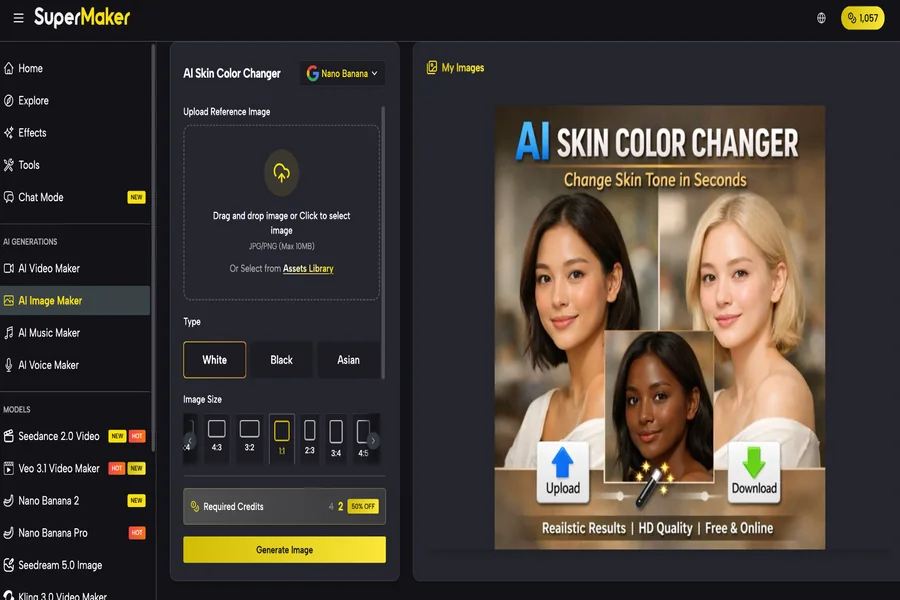
- AI Skin Color Changer is the primary tool. Upload a photo, select your target skin tone from the type selector, choose output size and image count, and the AI generates a version with the adjusted skin tone in seconds. The model isolates skin areas automatically — no masking, no selection tools, no layer management. Critically, it preserves the original texture, pore detail, and lighting response of the skin rather than applying a flat color shift. For product photographers who need a model’s skin tone adjusted to match a brand palette, or portrait photographers delivering consistent edits across a full session, this removes the most time-consuming part of the workflow entirely.
- Multiple Output Variations let you generate 1–4 versions per upload in a single run. When a client hasn’t confirmed which direction they want, generating four variations at once means you send options rather than waiting for approval before starting. Each variation applies the same tone adjustment with slight natural differences, giving realistic choice rather than identical copies.
Supporting Image Tools
- AI Color Replacer handles broader color swaps across any element in an image — clothing, backgrounds, objects — when the edit scope goes beyond skin alone. Useful for full look changes on e-commerce shots where skin tone, outfit color, and background all need to match a new brief simultaneously.
- Remove Filter From Photo strips existing color filters or grading from uploaded images, restoring a neutral base before applying new adjustments. Useful when working with photos that were already processed and need to be brought back to a clean starting point before skin tone editing.
All tools run in the same browser-based interface with no installation required, which matters when you’re working across multiple client briefs in a single session. One practical limitation: the tool works best on portrait-oriented images with clear skin visibility — heavily backlit, obscured, or extreme-angle shots may produce less consistent results.
How to Get Your First Result in Under 5 Minutes
No installation. No account required to start. Go to Supermaker AI Skin Color Changer and follow these steps.
Step 1 — Upload Your Image
Drag and drop or select a JPG or PNG file up to 10MB. Portrait photos and product shots with clear skin areas produce the best output.
Step 2 — Set Your Parameters
Select the skin tone type from the dropdown, choose your output aspect ratio to match the original, and set the number of image variations — up to 4 per run.
Step 3 — Generate and Review
Click Generate. Results are ready in seconds. Review the variations and download the version that matches your brief in HD.
Step 4 — Apply to Your Set
For batch work, run the same settings across your full image set. The consistent model output means less manual matching between images compared to manual retouching.
FAQ
Is the AI Skin Color Changer free to use?
You can start without creating an account. Credits are required per generation; free credits are available on sign-up, with paid plans for higher volume.
Does the tool affect background, clothing, or other elements in the photo?
No. The AI isolates skin regions specifically — other areas in the frame remain unchanged unless you use a separate color replacement tool.
What file formats and sizes does the tool accept?
JPG and PNG files up to 10MB. Output is available in HD resolution across standard aspect ratios from 21:9 to 9:16.
How does AI skin tone editing compare to manual Photoshop retouching?
Manual retouching gives more granular control but takes significantly longer per image. AI editing is faster and more consistent across batches, with the trade-off that extreme or highly specific tone requests may need manual refinement afterward.
Can I use the output images commercially in client work or advertising?
Yes. Images generated through SuperMaker AI carry commercial use rights, making them suitable for client deliverables, advertising campaigns, and e-commerce use.
Start Editing
Skin tone retouching doesn’t have to be the slowest part of your post-production workflow. AI-powered editing handles the selection, adjustment, and texture preservation automatically — what used to take 20 minutes per image now takes seconds.
If you have a backlog of portrait or product shots that need skin tone adjustment, SuperMaker AI is a good place to start. No software to install, no account required for your first generation, and results are ready before you’d finish masking the first layer in Photoshop.